

This guide walks you through managing your validator’s reward allocations using BeraChef via FoundryDocumentation Index
Fetch the complete documentation index at: https://berachain-422fce37-fix-pol-diagrams.mintlify.app/llms.txt
Use this file to discover all available pages before exploring further.
cast and the BeraHub UI.
We often call a validator’s BeraChef weights the cutting board: the split of Reward Vault emissions across whitelisted vaults.
Requirements
- Active Validator Node
- Validator Operator Wallet Address & Private Key
- Validator PubKey
- Foundry using
cast
Understanding reward allocations
Each validator can customize how their rewards are distributed across different reward vaults. Effective routing uses your activated allocation when it is active and valid. If not, the protocol falls back to a baseline allocation maintained network-wide, then to a governance-set default on BeraChef when needed. See Baseline allocation, default fallback, and inactivity. Key concepts:- Reward allocations must total 100% (10000 basis points)
- Only whitelisted vaults can receive allocations
- Changes require queuing and a delay period before activation
- Current delay: 500 blocks
- If you keep the same percentages, you still need to queue and activate a new allocation before the inactivity window passes (about seven days on mainnet today), or routing may switch to baseline
Baseline allocation, default fallback, and inactivity
What you configure in this guide is your custom allocation on BeraChef. At distribution time,getActiveRewardAllocation resolves routing in layers:
-
Baseline allocation — Held in
RewardAllocatorFactoryand updated byALLOCATION_SETTER_ROLE. This is the network baseline cutting board: a fallback for validators who do not self-manage. It applies when you have never activated an allocation, or when your active allocation is inactive (below). -
Default reward allocation on BeraChef — Set by governance on
BeraChef. If baseline weights are no longer valid (for example a vault is no longer whitelisted), routing falls back to this default.
block.number is greater than its startBlock plus rewardAllocationInactivityBlockSpan. On Berachain mainnet today that span is 302,400 blocks (about seven days at ~2 second blocks). Activating a queued allocation advances startBlock and resets the window. Some validators may be exempt on-chain (isValExemptedFromInactivity); exemptions are operational exceptions.
To keep your chosen vault weights, re-queue and activate before the window elapses—even if the percentages are unchanged.
Option A - Using Foundry CLI
Step 1 - Check active allocation
Start by checking your validator’s current reward allocation:RewardAllocation struct, a tuple containing:
- The allocation start block
- An array of tuples, each containing the vault address and the percentage numerator (adding up to
10000)
Step 2 - Queue new allocation
An example command to queue a new allocation resembles the following:Your
START_BLOCK must be greater than the current block number + the block delay (500 blocks).Step 3 - Check your queued allocation
Check your new pending allocation:startBlock is reached, the new allocation will be automatically activated the next time rewards are distributed for your validator.
Option B - Using BeraHub UI
You can also manage your reward allocations through the Berachain Dashboard: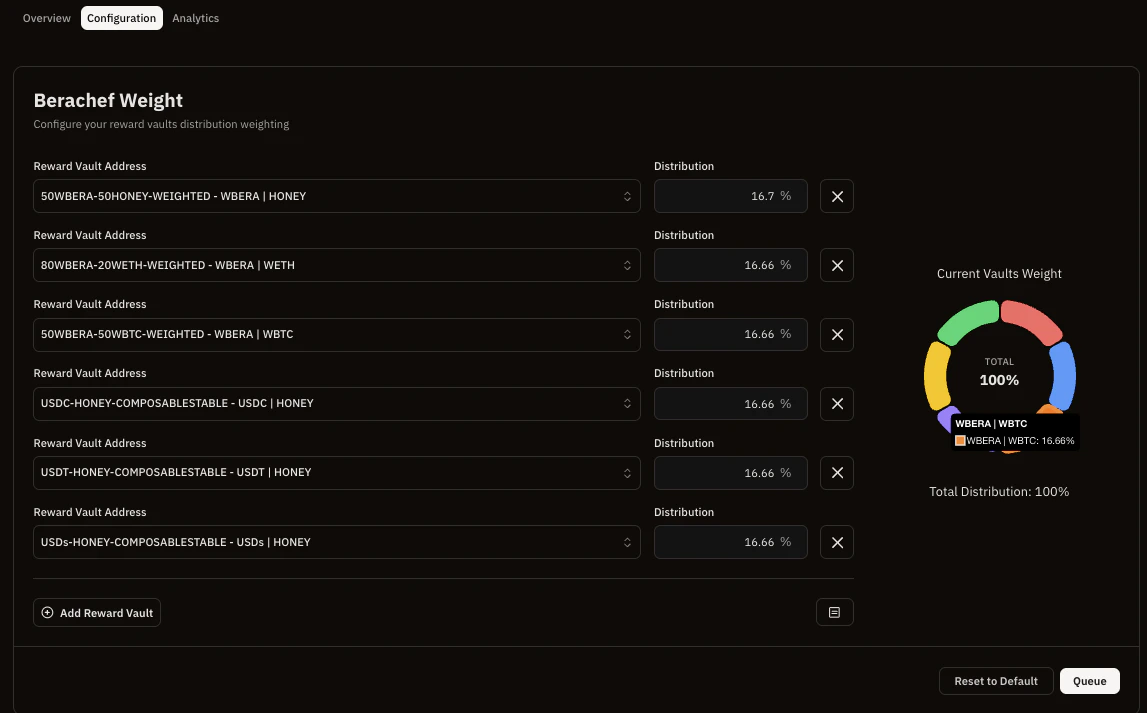
- Navigate to the Validator Dashboard on Berachain Hub
- Connect your validator operator wallet
- Click Manage as a validator
- Click the Configuration tab
- Select your vaults and choose desired allocation percentages (ensuring they add up to 100%)
- Click Queue and submit the transaction
See also
- Block production & rewards — How Reward Vault emission and allocations interact at distribution time.